# Pod scheduling
> Automated node affinity for proportional resource scheduling
---
Site [llms.txt](/llms.txt)
---
StormForge recommendations can optionally include node affinity, hard or soft, that influences the scheduler to place workloads on specific kinds of nodes.
The goal of this feature is to provide better node utilization and bin packing by placing workloads on nodes that match their CPU and memory characteristics. StormForge categorizes every workload according to its `CPU:Memory` request ratio, then adds node affinity for node types with similar `CPU:Memory` resource ratios.
## Pre-work
At present, this feature mandates the use of specific labels and node `CPU:Memory` resource ratios. In a future release, labels, node categories, and `CPU:Memory` ratios will all be configurable.
In order to use the feature you will need to add a specific instance category label to your nodes, with a value indicating the named `CPU:Memory` ratio it most closely aligns with. By default the label and values needed are:
**Category label:**
| |
| ------------------------------- |
| stormforge.io/instance-category |
**Category label values:**
| Title | Label value | `CPU:Mem` ratio |
| ----------------- | ----------------- | --------------- |
| Compute Optimized | compute-optimized | `1:2` |
| General Purpose | general-purpose | `1:4` |
| Memory Optimized | memory-optimized | `1:8` |
The `CPU:Memory` ratio units are cores to gibibytes (Gi).
## Using pod scheduling recommendations
After configuring your node labels or node groups, you can use StormForge to apply right-sizing recommendations that include node affinity to help the scheduler more tightly binpack your nodes.
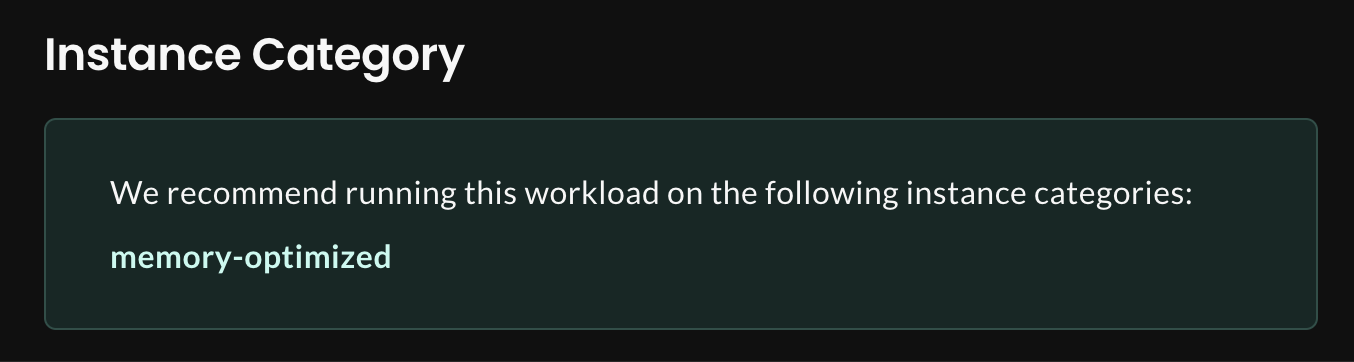
1. At the bottom of the recommendation details page for each workload you will see an “instance category” as part of the recommendation.
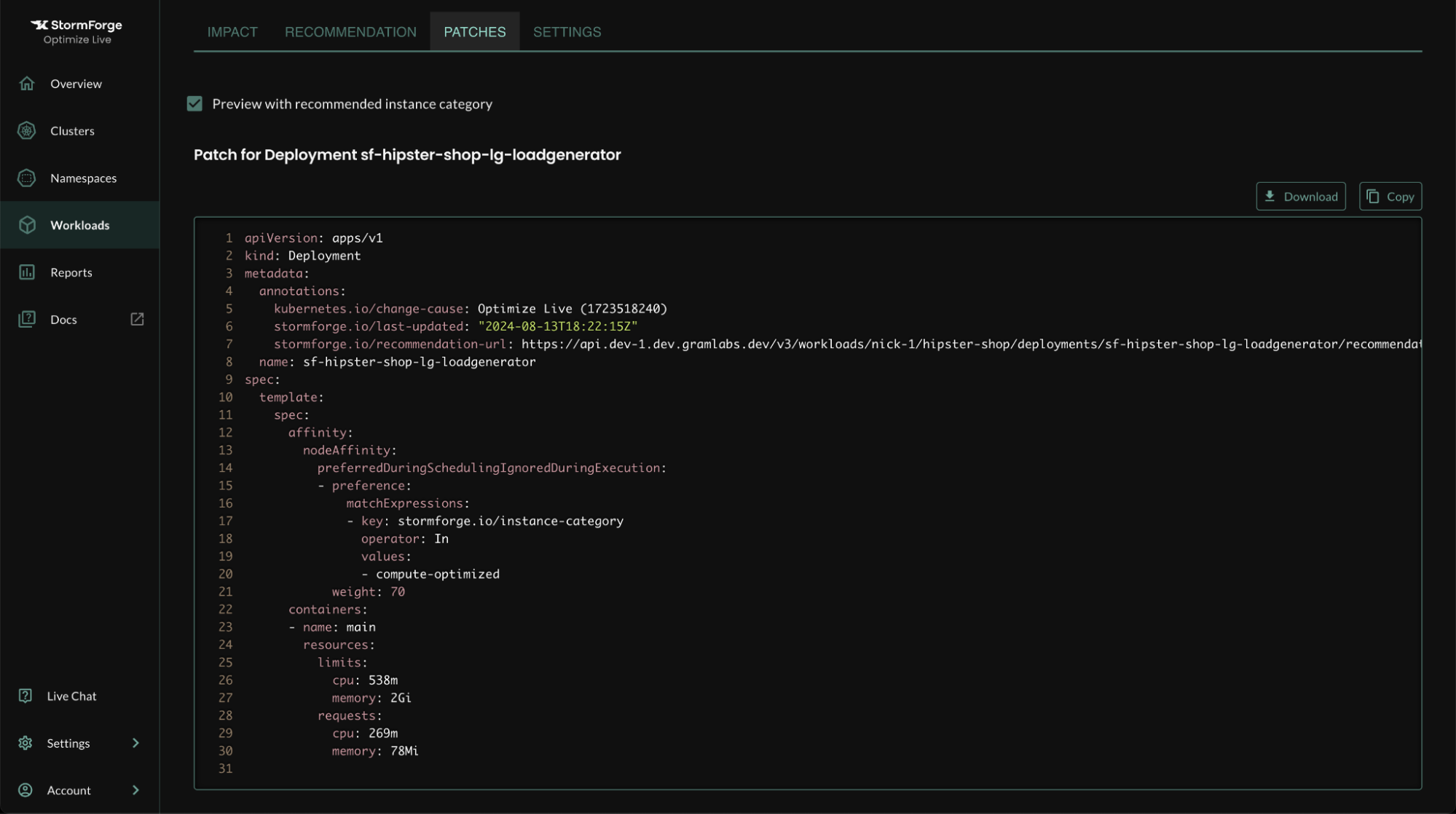
2. On the patches tab for a workload you can preview what the patch will look like if you enable applying our recommended instance categories.
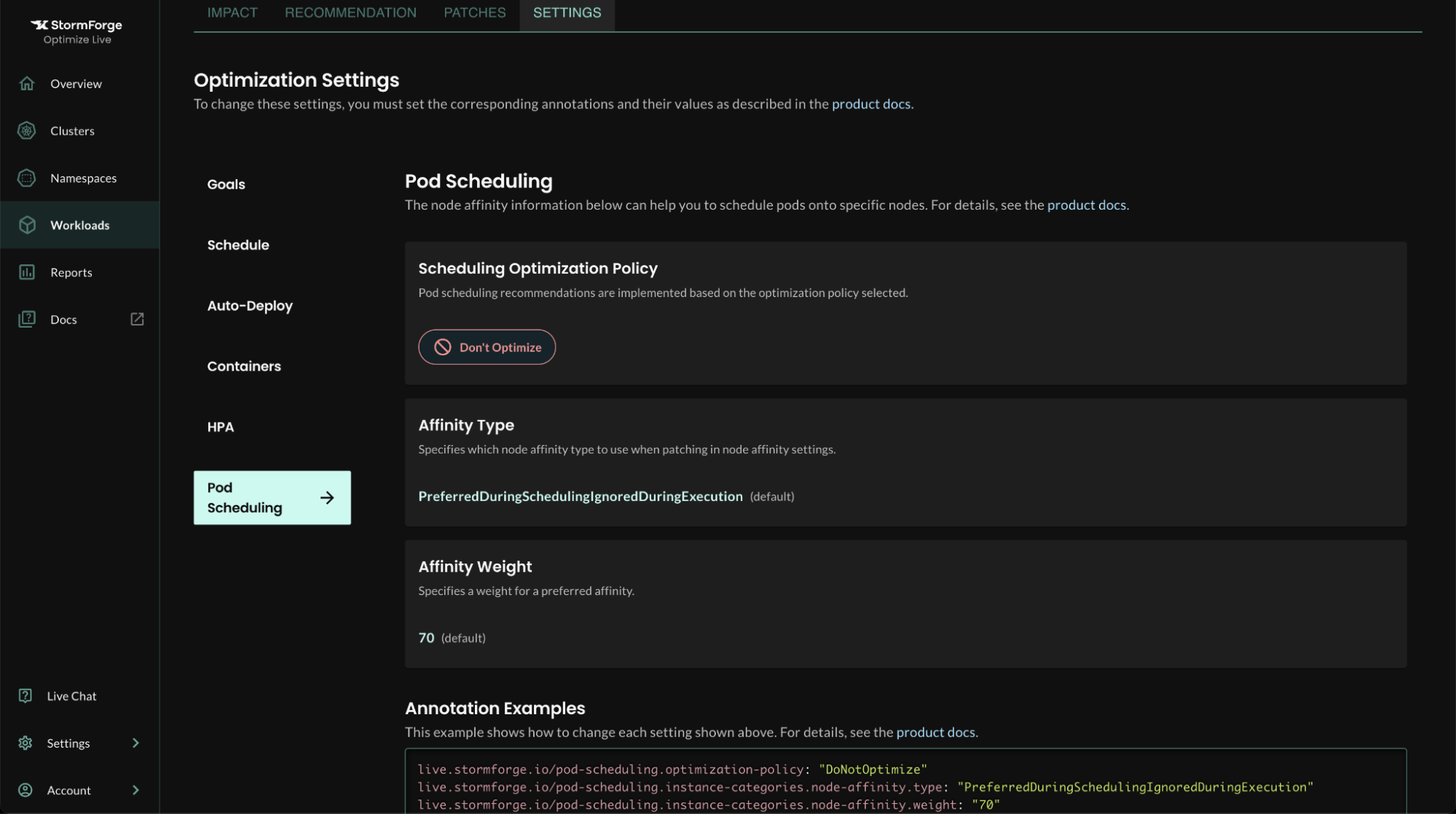
3. Finally, you can enable automatic application of the instance category recommendations by setting configuration via annotations. We display the configuration in the UI under the pod scheduling section.
4. The simplest way to test that the node affinities are working as expected is to go to the patches tab, preview the patch with recommended instance category, and then download and apply with `kubectl patch`.
* After you have confirmed that the node affinity patches work as expected you can continue with enabling the feature and automatically deploying.