Subscribe through AWS Marketplace
3 minute read
With pay-as-you-go billing, you can subscribe to StormForge and get billed through your AWS account. Billing is based on an hourly rate, per the number of requested CPU cores for each cluster connected to your StormForge account. There is no upfront or minimum cost.
See the AWS Marketplace - Buyers Guide for details on the AWS Marketplace and the StormForge product page for StormForge pricing.
Subscribing to StormForge
-
Navigate to the StormForge product page in the AWS Marketplace.
-
Click View purchase options.
-
Review the terms and pricing; then, click Subscribe.
Billing an existing StormForge accountIf you already have a StormForge account that does not have pay-as-you-go billing, your last step is to contact StormForge Support and provide your AWS account ID. StormForge Support will convert your existing account to a subscription.
-
Click the Set up your account link, which takes you to the StormForge sign up page.
-
Sign up for a new StormForge account by providing a username and password. At this time, social logins (social SSO) are not supported when creating StormForge subscriptions.
-
Confirm your email address via the link sent to you in the welcome email.
-
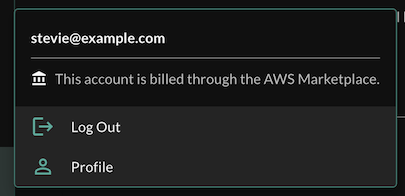
After logging in, confirm that the account menu shows This account is billed through the AWS Marketplace:
-
Continue with the StormForge Agent installation.
After 48 hours, you should see usage data for the StormForge product in your AWS Billing and Cost Management. You can use AWS Cost Explorer to analyze the hourly charges. In the Marketplace charges by service section under Bills, you can see the total charges for the current billing period.
Canceling your subscription
To cancel your subscription, navigate to the AWS Marketplace subscriptions page in the AWS console and click Cancel subscription in the Actions menu. It takes about one hour to close your StormForge account, at which time you will no longer be billed through AWS Marketplace.
For a step-by-step-guide, see Canceling your SaaS subscription in the AWS documentation.
Lastly, uninstall the StormForge Agent from your clusters.
Configuring cost allocation tags for per-cluster reporting
By default, AWS Marketplace exposes the total cost billed to your account only. To enable per-cluster reporting, configure a cost allocation tag for aws:marketplace:isv:cluster.
NOTE: It can take up to 48 hours before you see per-cluster billing in AWS Cost Explorer. This is because it typically takes 24-28 hours for AWS Cost Explorer to process and show StormForge usage reports. AWS Cost Explorer will apply the new tag to StormForge usage reports that it has not yet processed, as well as future usage reports.
For details, see the AWS Vendor-metered tags guide.