Try a sample application on your own cluster
9 minute read
The Showcase application is a sample application we developed to create load, enabling you to experiment with StormForge on your own cluster: generate, view, and apply recommendations, observe how our machine learning rightsizes workloads, and set values to generate recommendations based on your organizational needs.
This application creates a single Kubernetes Deployment (workload) that generates variable load using one CPU core for 24 hours. StormForge collects metrics on this workload and generates recommendations to rightsize it.
Two minutes after installing the Showcase application, you can see the initial metrics that StormForge has collected.
Ten minutes after installation, you’ll receive an initial recommendation—a collection of proposed optimized settings—and graphs that compare actual CPU and memory usage with the recommended settings. As StormForge collects more metrics, you can view the potential impact of recommendations and see the usage patterns on which StormForge bases its recommendations.
Prerequisites
You’ll need:
-
A StormForge account — sign up for a free 30-day trial
-
Helm version 3.14.0 or later
-
A Kubernetes cluster (from any Kubernetes distribution, such as EKS, AKS, minikube, or kind)
For minikube v1.38.0 or earlier, use
minikube start --container-runtime=containerdto setcontainerdas the runtime. From v1.39.0,containerdwill be the default runtime.
Check out the StormForge sandbox environment.
With view-only privileges, you can click through the StormForge UI, view recommendations, and view graphs that show usage, current requests, and recommended requests.
Install the Showcase application and StormForge (3min)
Install the Showcase application
From a command line, run:
helm install optlive-showcase-app oci://registry.stormforge.io/examples/optlive-showcase-app
Log in to StormForge
Go to app.stormforge.io and log in with your StormForge Account.
Install StormForge: Complete the steps in the Get Started wizard
- Give your cluster a name.
- Download or copy the generated Helm values file.
- Install StormForge: Copy and run the generated
helm installcommand. - Click Check Connection and wait for this step to complete (it might take a minute).
Your cluster is now registered with StormForge.
Now that your cluster has a workload (the Showcase app) and StormForge installed, StormForge can start collecting metrics on the workload.
Within the first two minutes
StormForge has just started collecting metrics, so for a minute or two, the Overview and workload details pages have little to show.
What’s in a recommendation?
By default, a recommendation suggests optimized CPU and memory requests and limit values for each container in the workload. By default, only optimized request values are applied. You can change that to include limits, or you can exclude containers that don’t need to be optimized. Later in this guide, you’ll learn more about configuring optimization settings.
After 2 minutes: The view of your estate
StormForge has already identified overprovisioning and underprovisioning, and has estimated the potential savings that could be realized across the estate by applying recommendations.
The Overview page now looks something like this:
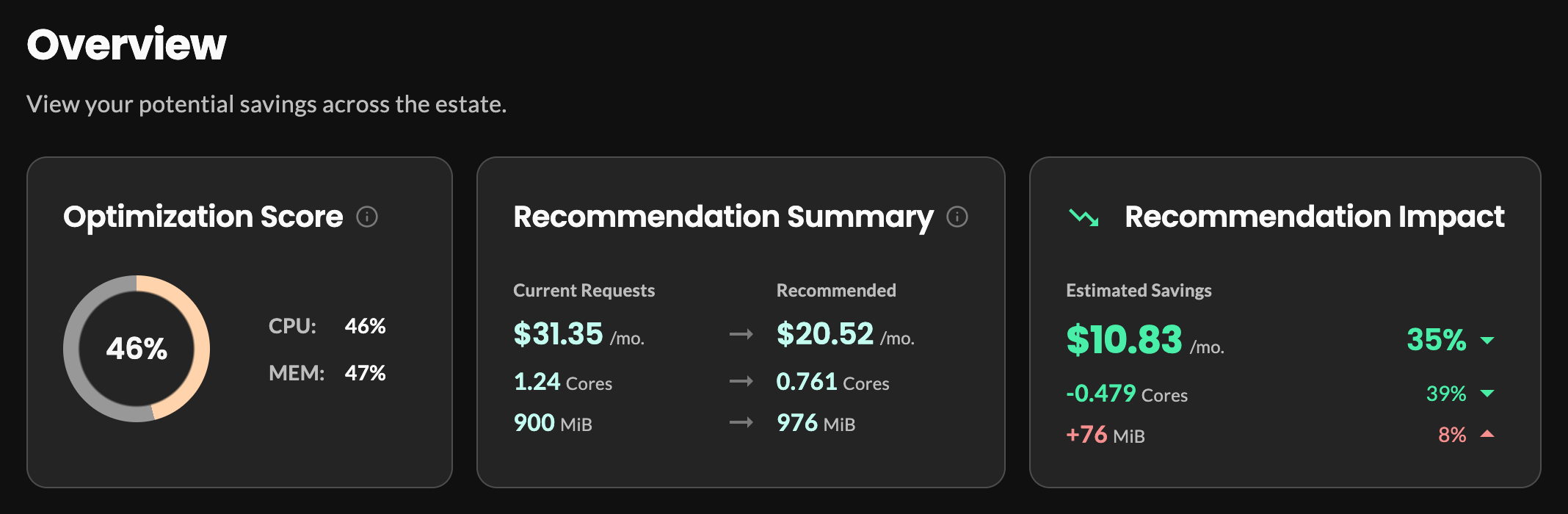
- The Optimization Score measures how closely current requests match the recommendations. A score of 100 indicates perfect alignment.
- The Recommendation Summary shows current and recommended requests and cost across the estate. Recommended requests are calculated by aggregating per-container recommended request values multiplied by observed replica count, and then averaging that value over the last 7 days.
- The Recommendation Impact shows the difference between current and recommended totals: the estimated savings, and the net change in CPU and memory.
A net change can hide movement in both directions: rightsizing overprovisioned workloads frees resources, while rightsizing underprovisioned workloads adds them. The Waste and Performance Risk cards below these show those two sides separately.
Where do the dollar amounts come from?
They’re calculated using the values on the Cost Estimates page. In the left navigation, click Settings > Cost Estimates. You can adjust them to better reflect your environment, and hide them if they’re not important to you.
Estate view: At-a-glance cluster, namespace, and workload health
Review the Top Namespaces and Top Clusters sections to understand where applying recommendations is most beneficial. To see individual workloads, click View Overprovisioned Workloads on the Waste card or View Underprovisioned Workloads on the Performance Risk card.
In each section, the Net Impact column shows the estimated change in monthly cost from applying the recommended settings.
You can drill down to the workload level by clicking any item on the page.
After 10 minutes: Your first recommendation
About 10 minutes after installing the Agent, you’ll get a preliminary recommendation for rightsizing the Showcase application (the optlive-showcase-app workload). You can view the recommendation on the workload details page: In the left navigation, click Workloads and then find and click optlive-showcase-app. The workload details page opens on the Summary tab:
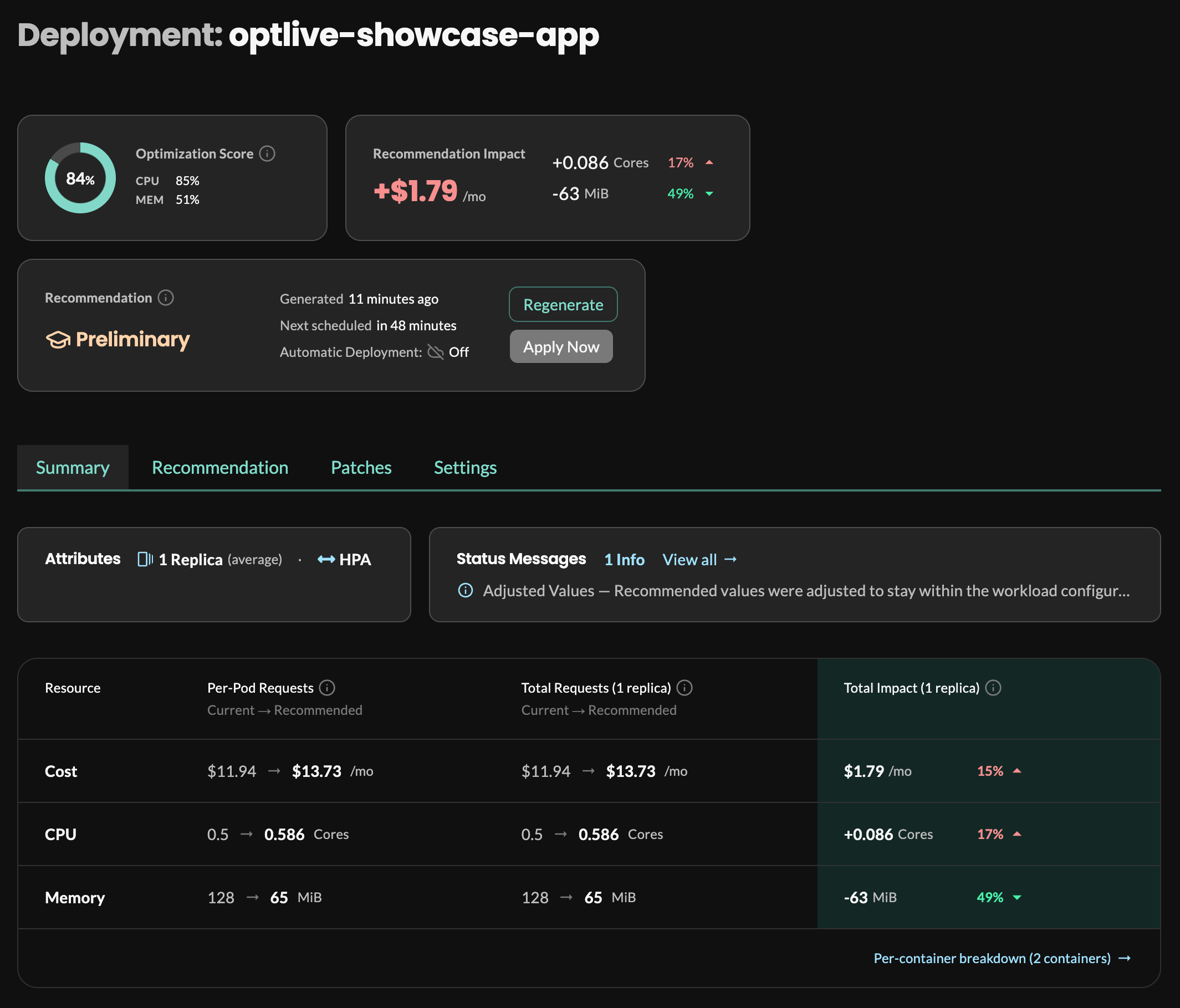
- The Optimization Score card measures how closely the workload’s current requests match the recommendation.
- The Recommendation card shows when the recommendation was generated, when the next one is scheduled, and whether Automatic Deployment is on.
- The Potential Savings card shows the estimated change in cost and the percentage change in CPU and memory requests. When a recommendation would increase cost, this card is titled Recommendation Impact.
- In the table, the Per-Pod Requests and Total Requests columns show current and recommended values for cost, CPU, and memory. The Total Impact column shows the difference between them.
In this example, the recommendation proposes the following changes to rightsize the workload:
- Increase the CPU requests, which can help to reduce throttling
- Decrease the memory requests, which can help to reduce costs
This recommendation is based on the default “balanced” optimization goal. You can configure recommendations to be more aggressive for greater savings or less aggressive for greater reliability.
Usage and requests over time
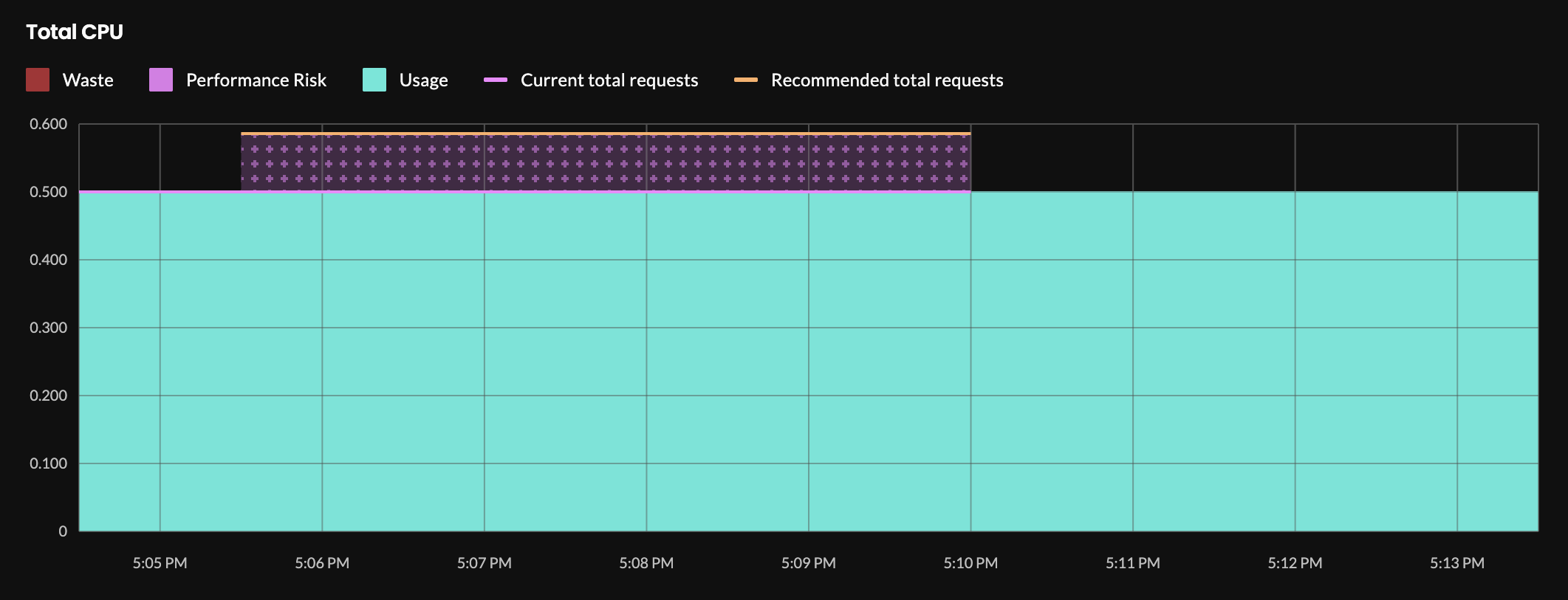
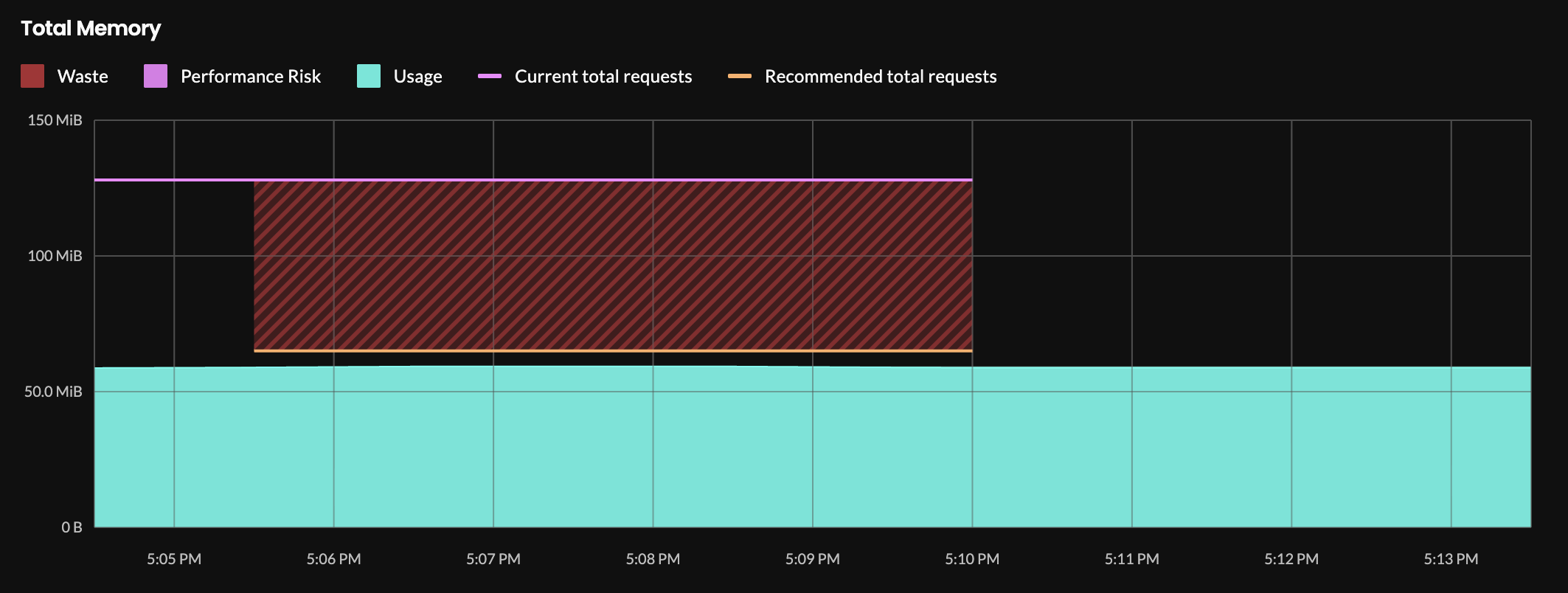
Below the table, the Usage vs. Requests charts plot usage against current and recommended requests over time, based on how the workload and its containers are configured (such as optimization goals, optimization policy, container-specific requests, and limits). The charts open in the Single Pod view, which shows per-pod values. Select Total Impact to show totals across all replicas.
Hover over a chart to see details at a point in time. In the chart legend, click a series to show or hide it.
In the Total CPU chart, the current requests closely match actual usage, which suggests this workload might experience throttling. The Performance Risk band marks where the recommended requests are higher than the current requests. The recommended total requests line, at 0.586 cores, matches the recommended value in the Total Requests column of the table.
In the Total Memory chart, the current total requests line is much higher than the actual usage, so the recommended total requests will help to rightsize this workload.
Based on the metrics collected so far for this workload, you can reduce throttling at a small cost.
Remember, this is for one small workload, after collecting metrics for only 10 minutes. If your estate has tens of thousands of workloads and many clusters, the impact of rightsizing could be much greater.
First 7 days: Metrics collection and preliminary recommendations
So far, you’ve looked at the first preliminary recommendation, generated after about 10 minutes. Recommendations generated in the first 7 days are preliminary, and provide an evolving preview of the potential optimization impact. These can be viewed, but we recommend waiting for complete recommendations — available after 7 days — before applying.
After StormForge collects 7 days of metrics, you’ll receive a complete recommendation once daily (the default schedule). As a best practice, you should review and selectively apply the first few complete recommendations to see what happens. Then, as you trust recommendations more, you can enable them to be applied automatically on more workloads.
Even if you enable automatic deployment in this 7-day learning period, StormForge won’t deploy anything automatically until 7 days of metrics have been collected.
Key points so far:
- Rightsizing is more than just cost savings: It’s about making sure workloads run optimally.
- You’ll get the most out of StormForge when you let StormForge apply recommendations automatically.
Typically, reviewing cluster- and workload-level optimization details is sufficient. However, you can review container-level optimization details, for example, to troubleshoot traffic spikes or unusual workload behavior.
Read on to learn about the recommendation details for each container in a workload. Otherwise, you can jump to Configuring recommendations to learn about a few optimization settings that can refine your recommendations.
Reviewing container-level recommendations
On the workload details page, click the Recommendation tab. For each container in the workload, the table shows current and recommended CPU and memory requests and limits. The Showcase app has two containers: optlive-showcase-app (which, by coincidence, has the same name as the workload) and optlive-showcase-app-loadgen.
Expand a container’s row to view its CPU and memory usage history charts, which plot the container’s usage against its current and recommended requests and limits over time.
Deploying recommendations automatically
The StormForge Applier is installed as part of StormForge and is ready to apply recommendations automatically.
When you’re comfortable with the recommendations StormForge generates, enable automatic deployment to keep resource settings current without manual review:
- Enable automatic deployment by setting the
live.stormforge.io/auto-deployannotation to"Enabled"as described in the Auto-deploy topic.
By default, a new recommendation is applied once daily. You can change the recommendation schedule based on how closely you want to track CPU and memory utilization and your tolerance for pod churn.
To reduce pod churn, you can define deployment thresholds to ensure that only the most impactful recommendations are applied.
Configuring recommendations
You can optionally configure several settings, including:
- Recommendation schedule: This defines how often StormForge generates (and optionally applies) recommendations.
- Optimization goals for CPU and memory: Do you want more “aggressive” recommendations that optimize cost savings, less aggressive recommendations that ensure reliability, or a balance of the two?
- Optimization policy: For each container, you can choose what to optimize: requests only, requests and limits, or neither.
- HPA target utilization: You can set this when an HPA is detected.
- Container-level thresholds: As mentioned above, thresholds specify the smallest amount of change to requests that makes it worthwhile to deploy new recommendations.
You can configure these settings by using the following methods:
- Annotations: Configure workloads individually, or at the namespace and cluster levels.
For details about configuring cluster, namespace, and workload defaults, as well as descriptions of the available optimization settings, see the topics under Configure optimization settings.
Recap
You installed the Showcase application to generate load on your cluster, and StormForge to generate recommendations.
Then you observed StormForge generated a preliminary recommendation and explored the details at the workload and container levels.
By letting the machine learning in StormForge rightsize workloads across your estate, you’ll see fast time to value and remove the toil of thinking about—and setting—optimal Kubernetes request values.